Photo Credit: Rim Zakaria; Turnitin
Turnitin Feedback Studio: New Assignment Type Choices
Added on August 31, 2026 by Rim Zakaria
Western University is updating how Turnitin Feedback Studio assignments are created in OWL Brightspace. Instructors will now be able to choose between the New Standard Assignment and the Classic Standard Assignment when creating a Turnitin Feedback Studio assignment. Previously, only the Classic Standard Assignment was available.
What is changing?
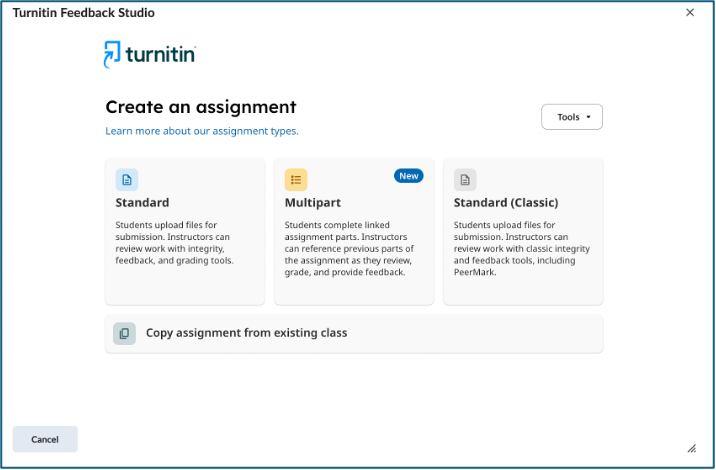
When you create a new Turnitin Feedback Studio assignment, you will now see a screen asking you to select an assignment type as shown below:
This change does not affect Turnitin assignments that you have already created. Existing Classic Standard Assignments will continue to be available and can still be accessed and used.
You will also notice a third assignment type called Multipart assignment. For further information regarding Multipart assignments, please refer to the Turnitin documentation.
Which assignment type should I choose?
For most new assignments, we recommend choosing the new Standard assignment.
| Feature | Standard | Standard (Classic) |
|---|---|---|
| Classic Similarity Report | No | Yes |
| Enhanced Similarity Report | Yes | No |
| Classic grading and feedback tools | No | Yes |
| Enhanced grading and feedback tools | Yes | No |
| Flags | Yes | Yes |
| Anonymous grading | Yes | Yes |
| Individual extensions | Yes | No |
| PeerMark | No | Yes |
Choose the New Standard Assignment if:
- You want to use Turnitin's updated assignment workflow and interface.
- You want to take advantage of improvements and new features that Turnitin introduce to the Standard Assignment.
- You do not require a feature that is currently available only in the Classic Standard Assignment.
The New Standard Assignment provides the core Turnitin Feedback Studio functionality instructors are familiar with while offering an updated workflow and improved accessibility.
Choose Classic Standard Assignment if:
- You specifically need a feature that is not yet supported by the New Standard Assignment.
- You use PeerMark with the assignment.
- You need to maintain a workflow that currently depends on the Classic Standard Assignment.
What about my existing Turnitin Feedback Studio assignments?
No action is required for existing assignments. Classic Standard Assignments that have already been created will remain accessible. This change only affects the options available when creating a new Turnitin Feedback Studio assignment.
Creating a New Standard Assignment
- In your OWL Brightspace course, begin creating a Turnitin Feedback Studio assignment by:
- Going to Content in your OWL Brightspace course
- Creating or looking for the unit where you want to add the Turnitin Feedback activity.
- Clicking on 'Add Existing' located on the top right of your screen, and
- Selecting 'Turnitin Feedback Studio'.
- When the Turnitin assignment type window appears, select the first choice, Standard assignment.
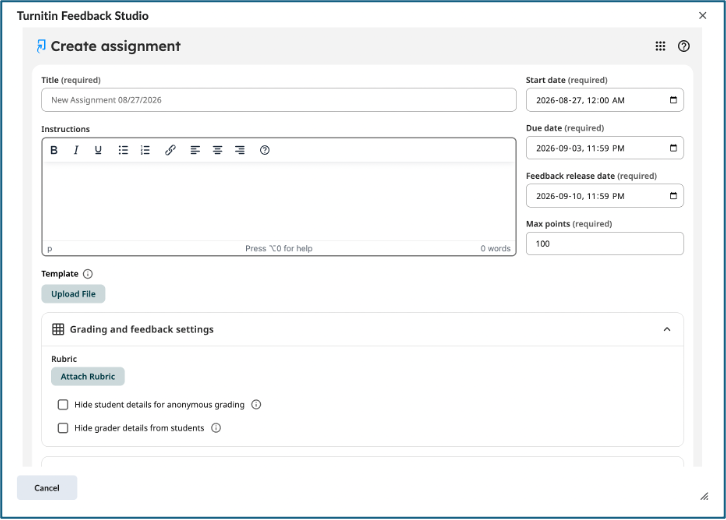
- Configure the assignment settings, including the assignment title, instructions, dates, feedback release date, and other Turnitin options.
- Select Create Assignment when finished.
Need help?
For more information about Turnitin Feedback Studio or assistance choosing the appropriate assignment type for your course, please refer to Turnitin’s Assignment Types Guide.