


Search Website
Understanding Your Storage
Each Microsoft Office 365 application has its own storage tracking and way to check how much storage you're using.
Email (Outlook)
To check your Outlook storage for User Email use the instructions below or watch this video :
- Log into MyOffice.uwo.ca
- Select the App Launcher (grid of dots in the top left corner) and click on Outlook
- Click the Settings gear icon (top right corner)
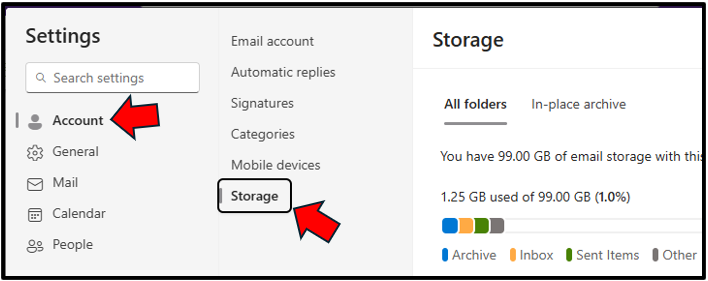
- Click on Account
- Click on Storage
Please Note:
If you do not see the "Account" tab, you can view your storage by clicking General, then Storage.
From here, you can check how much of your storage is in use and review the size / message count of each of your folders. You also have the option to bulk delete emails from folders based on their age, by clicking the Empty button beside each folder.
OneDrive
To check your User OneDrive storage use, follow the instructions below or watch this video :
- Log into MyOffice.uwo.ca
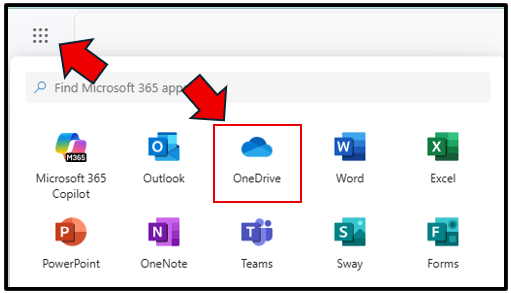
- Select the App Launcher (grid of dots in the top left corner) and click on OneDrive
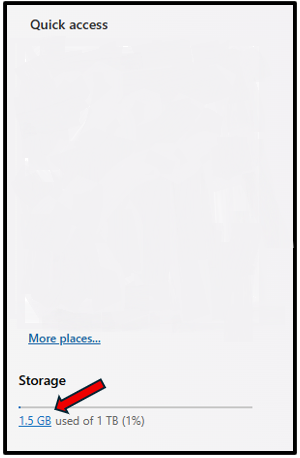
- The total storage is listed at bottom left corner of the screen under Storage e.g. 11.9 GB used of 50 GB (23.8%). Please note you may need to scroll down to find this listing.
If you would like to see a specific break down of your storage, you can use the steps below or watch this video:
- Click the Settings gear icon (top right corner)
- Click on OneDrive settings from the drop down menu
- Click on More Settings
- Click on Storage Metrics
From here, you can check how much of your OneDrive storage is in use. This page will break down how much data is stored in each of your folders. Click on any folder for a further breakdown of which files & subfolders take up the most space in that parent folder.
Group/Team OR Team Private/Shared Channel
Please Note:
Only Owners of a Team can review a Team's storage use.To check your Teams storage, use the instructions below or watch this video:
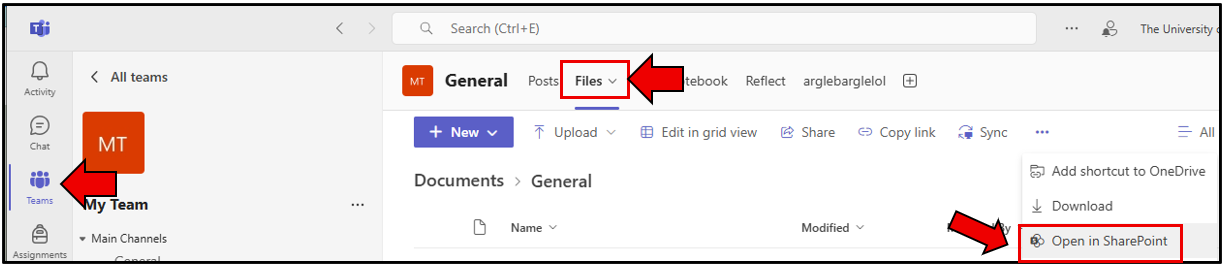
- In Microsoft Teams, navigate to the appropriate team or private/shared channel
- Select Files from the top navigation
- Select the three dots from the top navigation
- Select Open in Sharepoint which opens a new window in your browser
- Click the Settings gear icon (top right corner)
- Click on Site Information from the drop down menu
- Click on View all site settings
- Click on Storage Metrics (in the Site Collection Administration category)
From here, you can check how much of your Teams storage allocation is in use. This page will break down how much data is stored in each of your folders. Click on any folder for a further breakdown of which files & subfolders take up the most space in that parent folder.