


Search Website
Live Transcription
Zoom Live Transcription feature automatically transcribes the audio and speech from a Zoom meeting to text for participants to view during the session.
Notes:
- Only the host of a meeting can initiate live transcriptions.
- This feature is not available in Breakout Rooms or Zoom on Linux OS.
- This feature does not create captions in the Zoom recording. They only appear during the live meeting.
- If you had your Zoom Account settings already modified (changed from defaults) prior Feb 14, they will be kept as is.
Start Live Transcriptions During a Meeting or Webinar
To start the Live Transcription:
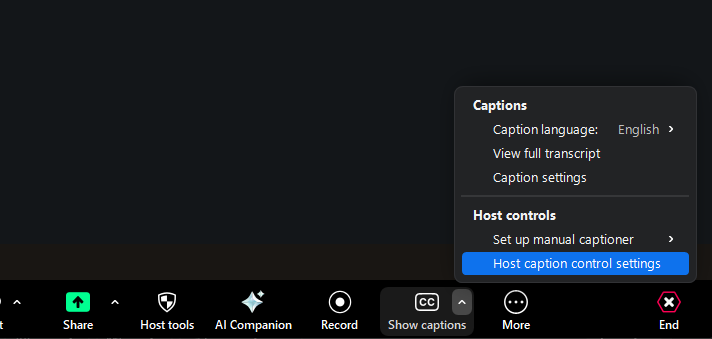
- Click on Show Caption option and select Host caption control setting
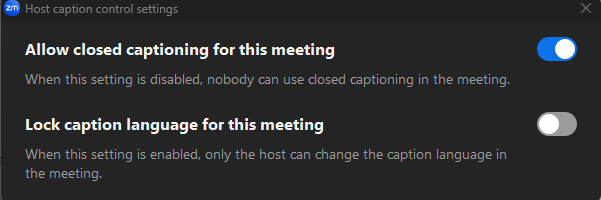
- Make sure the settings about " Allow Closed Caption" is enabled
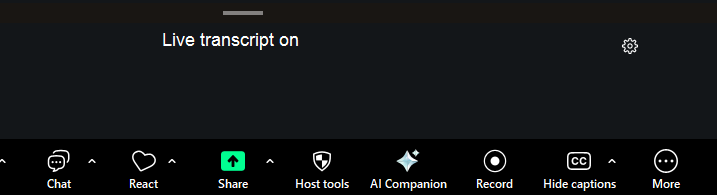
- Once Live Transcript started, Attendees will be alerted that the Live Transcript is available
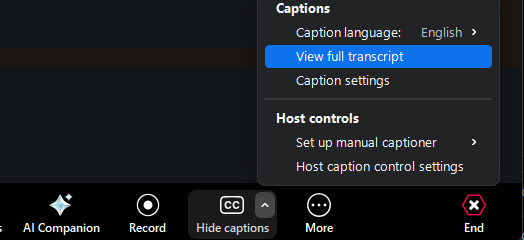
View Full Transcript
- The transcript will appear in a side-panel Transcript window. Host and attendees can also Search the transcript by entering text into the Search transcript field at the top of the window
- Hosts also have the ability to enable Save Transcript.
- To enable click to toggle on Save Captions in the Settings tab of the Western Zoom portal.
- Once enabled the full transcript can be saved by host and participants by clicking Save Transcript. A copy of the transcript will be downloaded to your local machine.

Subtitle Settings
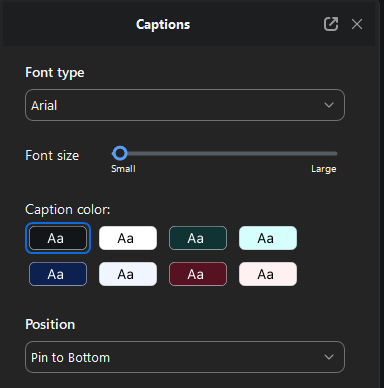
To adjust the Live Transcription Settings:
- Click Caption settings, it should open settings about Font Type, Font Size, Caption Color and Position
Prerequisites:
- Zoom desktop client for Windows, macOS: version 5.0.2 or higher
- Zoom mobile app for Android and iOS: version 5.0.2 or higher
Note:
- Live transcription only supports English and it is recommended that you speak clearly for best results.
- For more information please visit:Closed-captioning-and-live-transcription