


Search Website
Getting Started
Who can use Zoom?
Faculty, staff and students at Western and our affiliates are licensed to use Zoom at Western.
Please note :
- Service Identities are not eligible for a Western Zoom license. Everyone must use their Western Identity username and password when using Zoom at Western.
- Students can use Zoom, but they cannot request license upgrades e.g. join by Toll-free dialing, Webinar 500, Large Meetings, etc.
How do I get started using Zoom?
You can access your Western Zoom license through a web client or you can install a desktop client. In both cases, you mush first activate your Western Zoom account.
To activate your Zoom account, open your web browser and go to https://zoom.uwo.ca
- Click on Sign in
- When prompted, enter Western Identity User ID (your Western Username without the @uwo.ca) and your password.
- Click Log In

- Your Zoom account will be activated automatically and you will be taken to your Zoom Profile page.
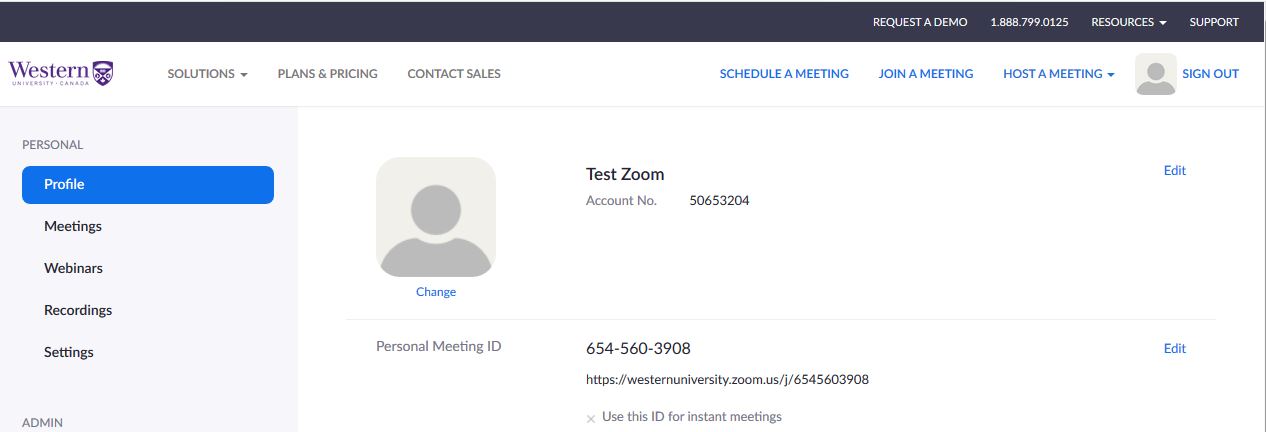
NOTE:
If you already have a Zoom account, you will receive an acceptance email to join Western's Zoom account.Zoom is always available to you through a web browser at https://zoom.uwo.ca . A Zoom client is available for Windows and Macintosh desktop computers, Apple iOS devices, and Android devices.
Once you have installed a Zoom client, you can access Zoom either through a web browser at https://zoom.uwo.ca or through the client on your computer or device.
Install a Zoom client on your desktop computer and log in
- Download the app at https://zoom.us/support/download. After installing the app, you will see a login screen.
- Click Sign In with SSO.
- When prompted for a domain, type westernuniversity
- Leave .zoom.us. as the default domain and click Continue.
- Enter your Western Identity username and password.
Install Zoom on a mobile device and log in
- To install the Zoom app, go to https://apps.apple.com/us/app/zoom-cloud-meetings/id546505307 for the iOS app or https://play.google.com/store/apps/details?id=us.zoom.videomeetings&hl=en for the Android app.
- Tap Sign In.
- Tap the SSO option.
- When prompted for a company name, enter westernuniversity and click Continue.
- Enter your Western Identity username and password.
To use the Zoom web client go to https://zoom.uwo.ca and log in.
Click on Sign in.
Type your Western User ID or username (without the @uwo.ca) in the User ID box and type your password in the password box.
Click the Log In button.
Your Zoom Profile page will open up and you will be able to schedule and join meetings.
Using the Zoom Web Portal
Go to zoom.uwo.ca and login with your Western Identity user id and password. Once logged in you will see your Meetings page. From that page you can
- Schedule a new Meeting
- View Upcoming Meetings
- Review Previous Meetings
- Set up and use your Personal Meeting Room
Using a Desktop or Mobile App
- Open your Zoom client and sign into Zoom via steps shown within Install and Login into Zoom on your desktop or mobile device
- Click on the Schedule icon. This will open the scheduler window.
- Select your meeting settings. Note that some of these options might not be available if they were disabled and locked to the off position at the account or group level.
- Click Schedule to finish, and open the selected calendar service to add the meeting.
Note:
If you are scheduling a recurring meeting, you will need to set the recurrence in your calendar service.
Choosing Other Calendars will allow you to copy and paste the scheduled meeting information such as date, time, and meeting URL.
For more information, please see How Do I Schedule Meetings or contact the WTS Helpdesk.
The Zoom LTI integration with OWL allows students and faculty to start and join Zoom meetings via a join link that is displayed on an OWL course. Please make sure that you have activated your Zoom account before using this feature.
Instructors can use Zoom to:
- Schedule and start Zoom meetings to support distance learning, office hours and study groups.
Students can use Zoom to:
- Join Zoom meetings to remotely attend classes, office hours and study groups.
For information on how to create a Zoom class or meeting in OWL, please go to the OWL Brightspace Help page Adding 3rd Party Tools page.