
Gradescope
Gradescope is a grading platform which offers online and AI-assisted grading tools for marking written exams, quizzes, and assignments in addition to auto-grading programming assignments. The tool allows instructors and graders to use a streamlined grading platform to provide efficient and timely feedback to their students.
Gradescope is centrally supported by WTS and available to all Western users at no charge. It can be integrated into any OWL Sakai and OWL Brightspace course to offer easy access for students.
Why use Gradescope?
- Variety of assessment formats.
- Gradescope can cater to different types of assignments and assessments, including paper-based exams, quizzes, bubble sheets (an alternative to Scantrons for multiple choice assessments), and homework.
- Gradescope enables you to grade programming assignments (graded automatically or manually) and lets you create online assignments that students can answer directly in Gradescope.
- Easy for teaching teams to divide work and grade simultaneously.
- Gradescope helps streamline collaborative, remote grading of assessments, including paper-based exams and quizzes, which saves time grading without having to hold in-person grading sessions and/or pass papers back and forth between graders.
- Gradescope helps coordinate grading across questions in parallel such that graders can mark the same question simultaneously.
- Automate the grading process.
- Gradescope offers a powerful rubric and commenting tool to provide rapid and consistent feedback to students. All graders of the same assessment share the same rubric, and if any change is made to the rubric, it automatically applies to all students who were already graded.
- Gradescope allows you to form answer groups (either manually done by the graders or automatically via the AI-assisted feature) to grade similar answers to a question faster without having to grade the same more than once.
- Gradescope helps faculty cover all aspects of creating, distributing, grading, and understanding the performance of their respective course assessments.
Instructor FAQ
How can I add Gradescope to OWL Sakai course site?
- At the start of the course, submit a ticket to the WTS Helpdesk to add the Gradescope tool to your OWL course site. This will create create a correspondong Gradescope course.
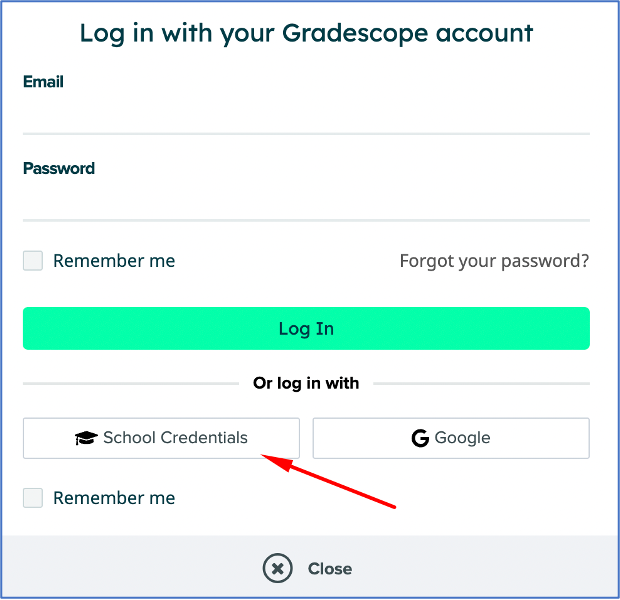
- Once the tool is available in your site, login to gradescope.ca by clicking on the "School Credentials" option, selecting Western University, and entering your Western username and password.
- On your Gradescope dashboard, find and click on your course.
- Upload your course class roster to your Gradescope course by clicking Roster on the left sidebar.
- On your Roster page, you can either click Add Students or Staff + to manually upload your class list as a .csv file or you can click the Sync Sakai Roster button in the footer or the middle of the page.
- For both options, if you don't want users to be notified that they have been added to the Gradescope course, uncheck "Let new users know that they were added to the course" in the dialog box.
How can I add Gradescope to OWL Brightspace course site?
- In your OWL Brightspace course, navigate to the Content tool.
- Create or select a Unit to add Gradescope to, then click Add Existing
 .
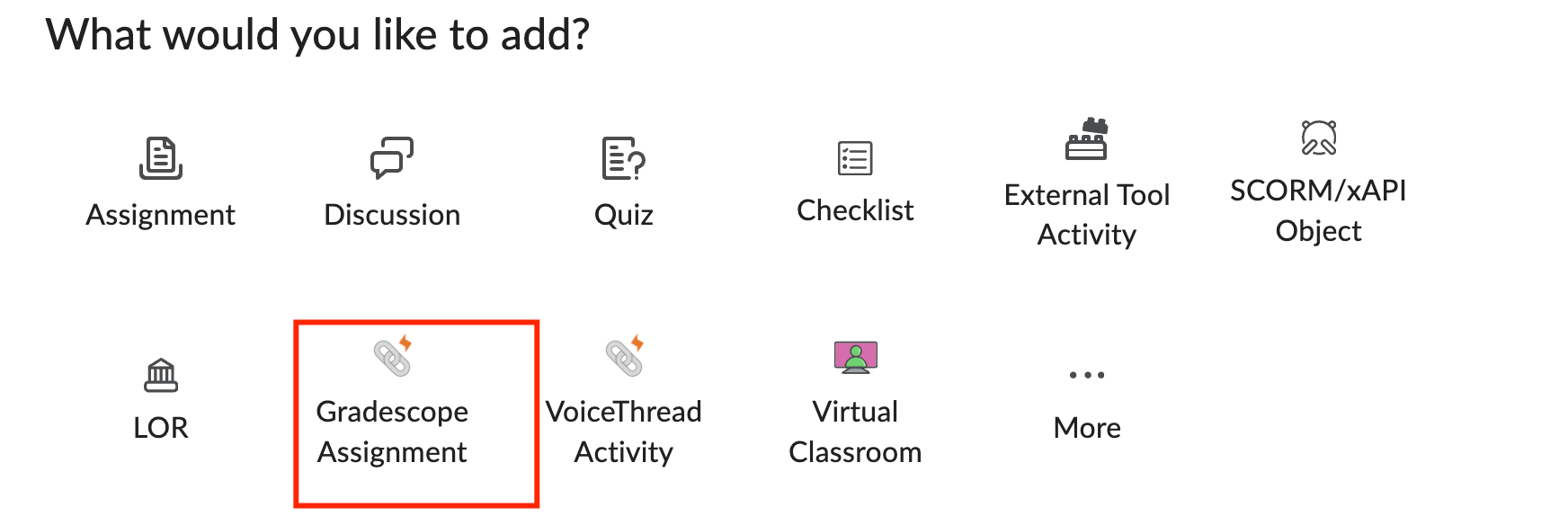
. - Select the Gradescope Assignment quicklink from the menu.
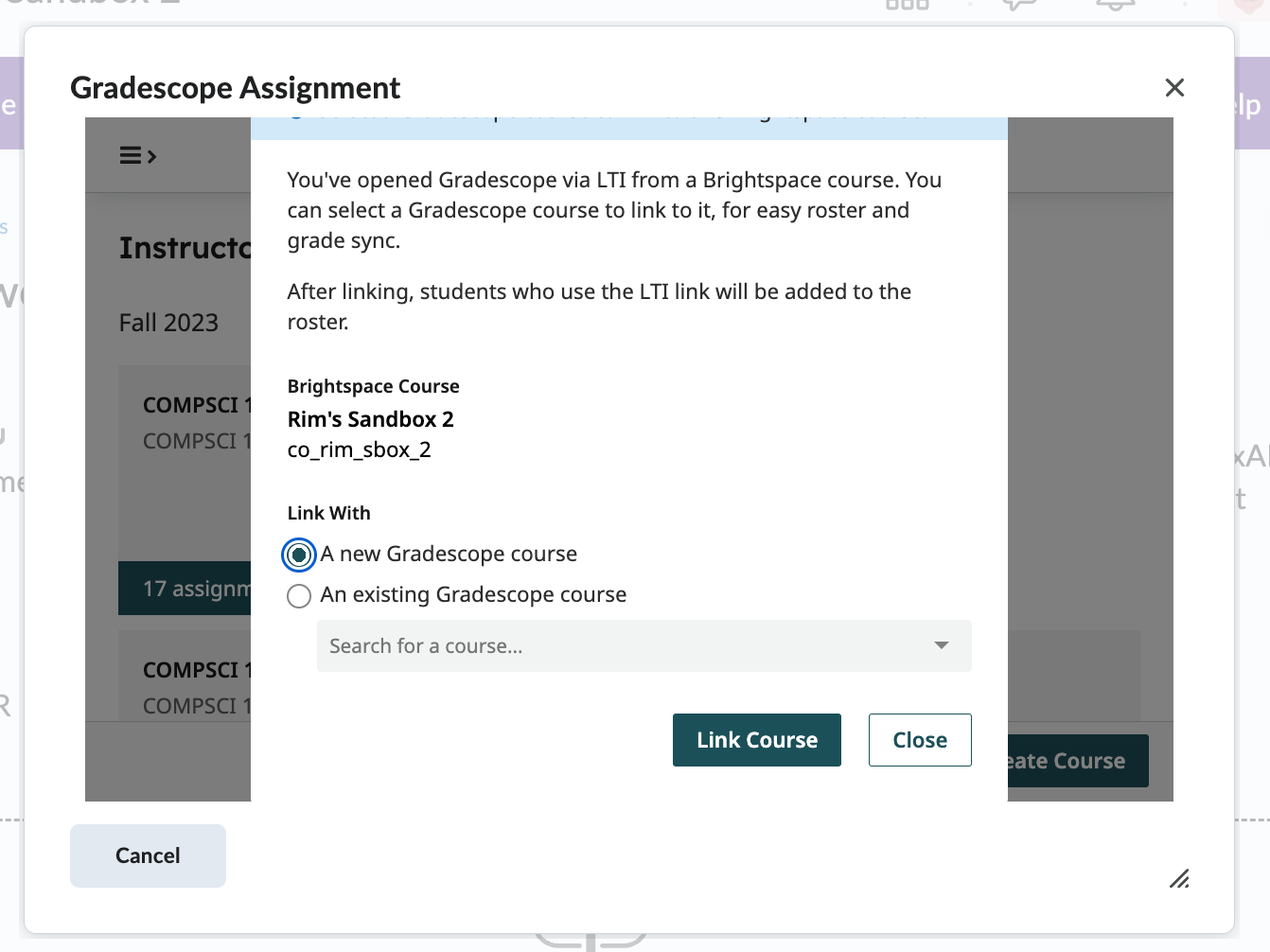
- A pop-up window will appear which will direct you to Gradescope to create and link your Brightspace course.
- Click on “A new Gradescope course" then click Link Course.
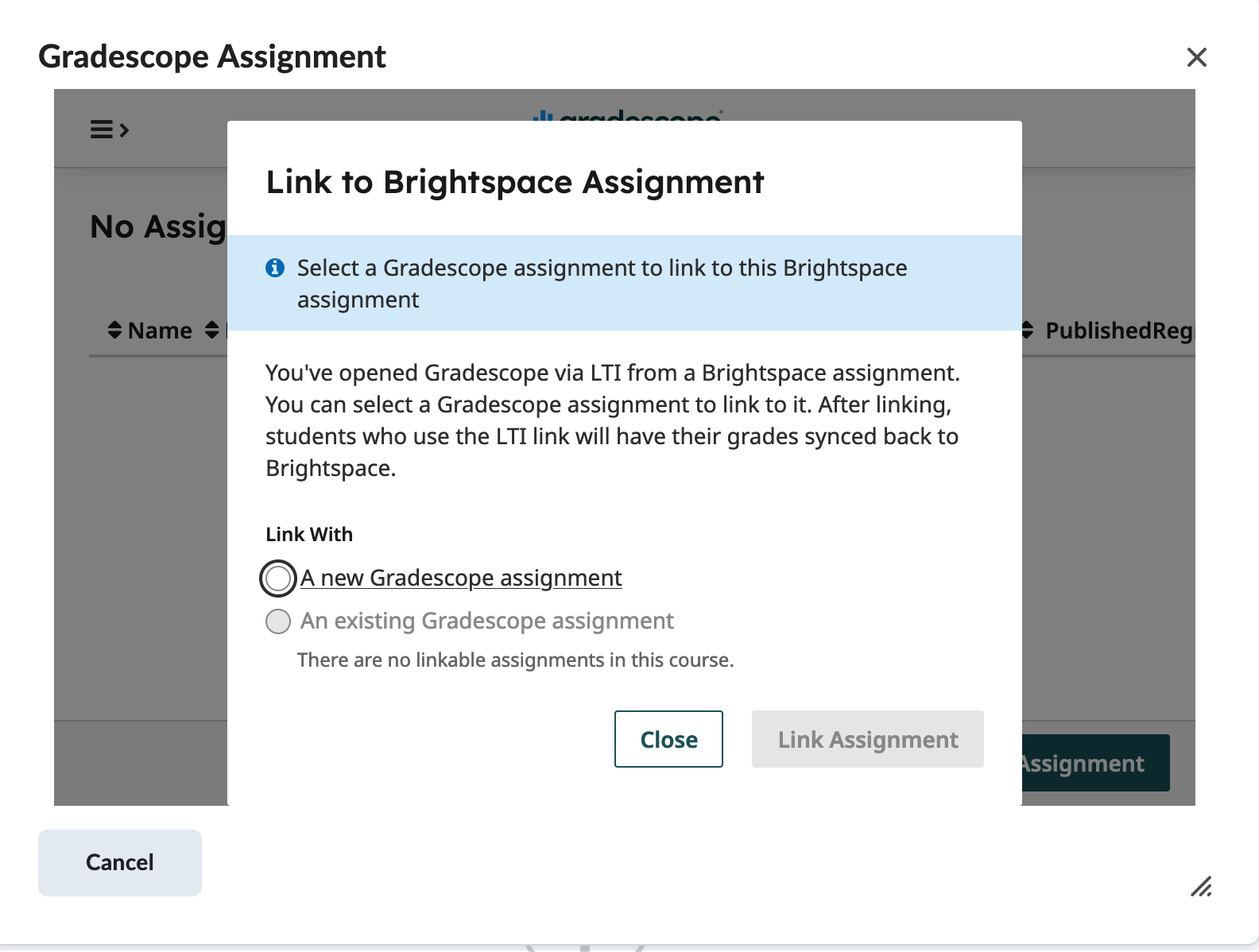
- Select whether you want to create a new Gradescope assignment or connect an already existing Gradescope assignment and click Link Assignment.
- If you are creating a new Gradescope assignment, select your assignment type and configure the settings. When complete, click Create Assignment.
- If you're not ready to create or connect an assignment, click Cancel. Your Gradescope course should still be created and linked to your course site.
- If you are creating a new Gradescope assignment, select your assignment type and configure the settings. When complete, click Create Assignment.
- Your Gradescope assignment will now be linked in the left navigation menu of the Content tool within the unit you selected.
How do I use Gradescope?
Gradescope’s official Get Started page contains helpful information on getting started with using the platform.
What kind of assignments can I create on Gradescope?
- Exams & Quizzes
- Homework & Problem Sets
- Bubble Sheets (an alternative to Scantrons but with more answering options capabilities)
- Programming Assignments:
- For setting up Programming assignments with autograders on Gradescope, submit a WTS Helpdesk ticket with your request.
- Watch this 1-hour workshop recorded August 23, 2019, demonstrating how to use Gradescope to mark programming assignments.
- Online Assignments (Beta)
How do I Create and Grade Paper-Based and Written Assessments on Gradescope?
This eLearning Technology article contains a detailed account and an interactive visual guide for instructors who would like to use Gradescope for grading paper-based exams and quizzes.
Can LaTeX be used in Gradescope?
Yes, LaTeX can be used on Gradescope to include math symbols in rubric items, comments, text annotations, answer group names, online assignment questions and responses, and regrade requests and responses. For more information on this, check Gradescope Help.
Are there any scanning services at Western that I can use to scan submissions and exams?
- For Faculty of Science instructors, Science Technology Services (STS) offer scanning services. Please follow their Examination Scanning guide before printing your exams.
- For Faculty of Social Science instructors, Social Science Technology Services (SSTS) offers scanning services. Please follow their Examination Scanning guide.
- For other faculties at Western, we are currently unaware of any dedicated examination scanning service availability.
How do I set up a paper-based exam/quiz for remote assessment?
For more information on how to setup remote paper-based assessments, please check Gradescope Help.
How can I sync my course grades for an assignment between Gradescope and OWL? How can I upload my grades on Gradescope to my OWL Gradebook?
Note: As of Fall 2022, grades in Gradescope cannot be synchronized to OWL and so you cannot post grades directly from Gradescope to your course OWL Gradebook by clicking Post Grades to Sakai
After finalizing grading, the instructor can download the assignment grades in CSV or Excel format by clicking on the Download Grades button on the assignment’s Review Grades page. The information in the downloaded file can be used to export the students grades to your OWL Gradebook.
For instructions on how to import grades into OWL, check OWL Help.
Student FAQ
How do I submit PDFs on the Gradescope website for fixed-/variable-length assignments/exams?
For help on how to submit your assignments and/or exam solutions on Gradescope, check Gradescope Help.
How do I complete an online assignment on Gradescope?
For help on how to submit your Online Assignment as a student on Gradescope, check Gradescope Help.
Is there a Gradescope mobile app that I can use to submit my work?
Yes, the Gradescope Mobile App allows students to upload work without the use of a scanner or third-party app. This makes uploading handwritten work more convenient and protects students’ privacy by keeping their work in Gradescope.
The Gradescope mobile app is available for both iOS and Android.
For more information on how to submit your work using the Gradescope Mobile App, refer to Gradescope Help.
Additional Resources
Further Support
If you have questions or need help using Gradescope, you can:
- Refer to the Gradescope Help Center
- Email help@gradescope.com for support on specific issues
- Submit a ticket to the WTS Helpdesk
- Check the Gradescope Status Page at any time to confirm that Gradescope is operational
Published on and maintained in Cascade.