Search Website
Securing Zoom
From the Security section:
This will be turned ON by default, so that a passcode will be generated when scheduling meetings, and participants will be required to enter it in order to join a session.
To adjust your Zoom Account settings, sign into Zoom and from the left navigation menu select Settings and navigate to Security.
The settings screen contains a list of defaults, which you can adjust to customize your meeting settings.

This option, which encrypts the password in the invite link, will be turned off by default. The passcode should be sent separately from communications with the link to the meeting.
To adjust your Zoom Account settings, sign into Zoom and from the left navigation menu select Settings.

The waiting room will be turned on by default, so that participants will be unable to join the meeting until admitted by the host.
To adjust your Zoom Account settings, sign into Zoom and from the left navigation menu select Settings and navigate to Security.
The settings screen contains a list of defaults, which you can adjust to customize your meeting settings.
NOTE: This option will automatically disable the setting to allow participants to join the meeting before the host.

Please Select Edit Options for more selection

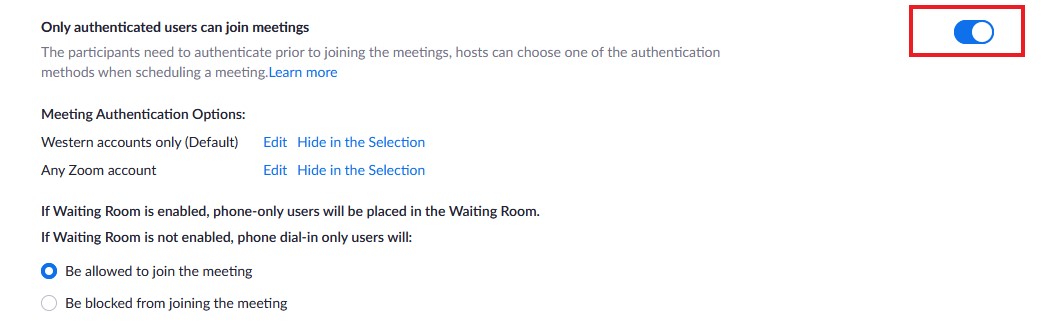
This option will be turn on by default, so that participants will require to use a legitimate @uwo.ca or @ivey.ca account to access meetings.
When joining a meeting participants will need to select 'Sign In with SSO' option which will prompt for the Western UserID and Password.
It is understood that some meetings will require guest speakers or need to be configured in such a way that this setting cannot be used.
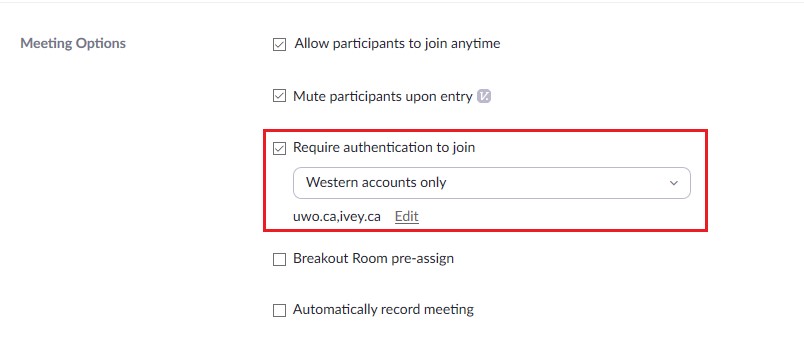
You can turn off 'Only authenticated users can join meetings option' by adjusting your Zoom Account settings, or unchecking the option while scheduling a meeting.
To adjust your Zoom Account settings, sign into Zoom and from the left navigation menu select Settings and navigate to Security.
To uncheck the option while schedule a meeting:
Note: this option is called 'Only authenticated can join' when you schedule a meeting from Zoom app.
Allowing Authentication Exceptions
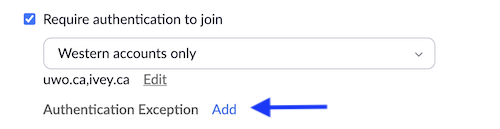
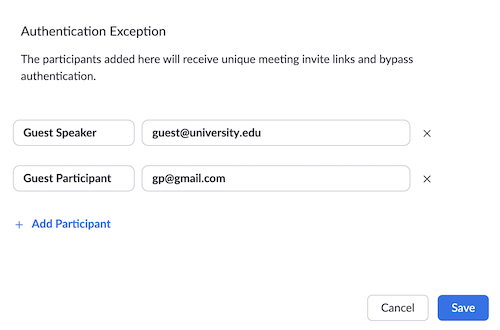
If you have individuals who are not part of your authentication requirement, you can add them to the “Authentication Exception” list. This is for inviting guest lecturers or participants, without reducing the security of your meeting.
Adding authentication exceptions (Hosts/users)
- Sign in to the Zoom web portal.
- Schedule a meeting or webinar.
- Under Meeting Options or Webinar Options, make sure Required authentication to join is enabled.
- Under Authentication Exception, click Add.
- Enter the guest participant's name and email address.
- Click Add Participant to add more exceptions.
- Click Save.
- Participant will receive a unique link to the meeting at their email address.
End-to-end (E2EE) encryption adds a layer of security for meetings where there is a need for enhanced privacy, or the data protection for your meetings.
When a host enables E2EE in a meeting, these features are disabled
- Join before host
- Cloud recording
- Live streaming
- Live transcription
- Breakout Rooms
- Polling
- Meeting reactions
- 1:1 private chats
-
Users will not be able to join by telephone, SIP/H.323 devices, on-premise configurations, the Zoom web client, third-party clients leveraging the Zoom SDK, or Lync/Skype clients, as these endpoints cannot be encrypted end to end.
All participants must join a meeting from a Zoom desktop client or mobile app. Joining from a web browser is not permitted.
- Zoom desktop client
- Windows: 5.4.0 or higher
- macOS: 5.4.0 or higher
- Linux: 5.4.0 or higher
- Zoom mobile app
- Android: 5.4.0 or higher
- iOS: 5.4.0 or higher
How does it work?
In standard Zoom meetings, the Zoom servers encrypt transmission of the video and audio. If a meeting host uses E2EE, the keys for each Zoom meeting are generated by participants’ machines, not by Zoom’s servers.
To enable E2EE for all your meetings (not recommended):
- Go to westernu.zoom.us and sign in
- Click Settings, then scroll down to Allow use of end-to-end encryption, click the toggle to enable it
- Under Default encryption type, check End-to-end encryption
- Click Save
To enable E2EE for a meeting:
- Go to westernu.zoom.us and sign in
- Click Settings, then scroll down to Allow use of end-to-end encryption, click the toggle to enable it (defults to Enhanced encryption)
- Click Meetings, then click Schedule a Meeting
- Under Encryption, select End-to-end encryption
Note : Because of the limitations of E2EE, Zoom recommends using Enhanced encryption as the default encryption type and using end-to-end encryption for meetings where additional protection is required.
Using E2EE for meetings:
- Once you’ve joined the meeting, check for the green shield icon
 in the upper left corner of the meeting window
 - The meeting host can also read the secur
itycode aloud and the participants can verify that their codes match.
From the (in a meeting section):
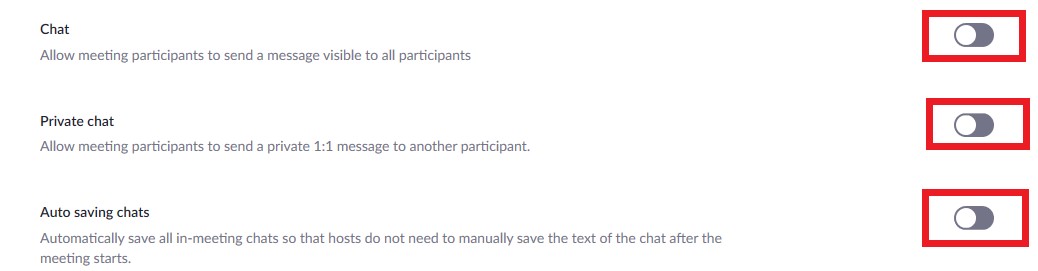
Chat will be turned off by default for participants so that it they will be unable to send broadcast messages.
Private chat, which allows participants to send private messages to other participants will be turned off by default.
Note: When chat is turned off, the chat option/icon does not appear in The Meeting Controls. To have the chat option in The Meeting Controls, you will need to login to Zoom portal to enable the chat.
To adjust your Zoom Account settings, sign into Zoom and from the left navigation menu select Settings and navigate to In Meetng (Basic).
The settings screen contains a list of defaults, which you can adjust to customize your meeting settings.
When Chat is turned on, you have the ability to limit how it can be used by participants. Once you have started your Zoom session, you can click on the chat icon at the bottom of your screen. The chat window will open up. In the bottom right corner of that window, you will see 3 dots (...). Click on them and the following chat setting options for participants will appear:
- No One
- Host Only
- Everyone Publicly
Everyone Publicly is checked by default. Simply click on the option you want to use for your session.
Please note: The setting always defaults to Everyone Publicly. If another option is preferred, it needs to be set each time you start your session.
This setting will be turned off by default. This item is for security concerns related to files being sent from one user to another within the platform.
Hosts and participants will not be able to send files through the in-meeting chat.
To adjust your Zoom Account settings, sign into Zoom and from the left navigation menu select Settings and navigate to In Meeting (Basic).

This setting will be turned on by default. Combining this setting with in-session controls that allow the host to mute all participants and not allow participants to unmute themselves can be very effective.
To adjust your Zoom Account settings, sign into Zoom and from the left navigation menu select Settings and navigate to In Meeting (Basic).

You can also adjust this setting on the meeting.
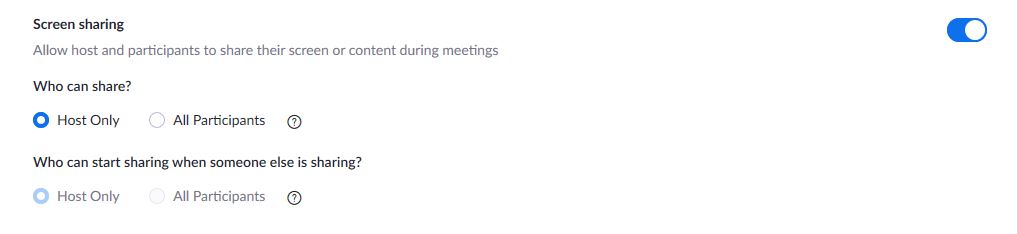
This setting will be turned off by default and will permit the host to share their screen and to give permission during the session for those that ask to share their screens. The host is further advised to take care in sharing only the desired content to minimize the risk of inadvertent sharing of personal or confidential material. This can be accomplished by sharing only the desired window (as opposed to the entire desktop) and closing other applications.
To adjust your Zoom Account settings, sign into Zoom and from the left navigation menu select Settings and navigate to In Meeting (Basic).