Search Website
Crestron - Touch Screen
Presenter Controls Dashboard
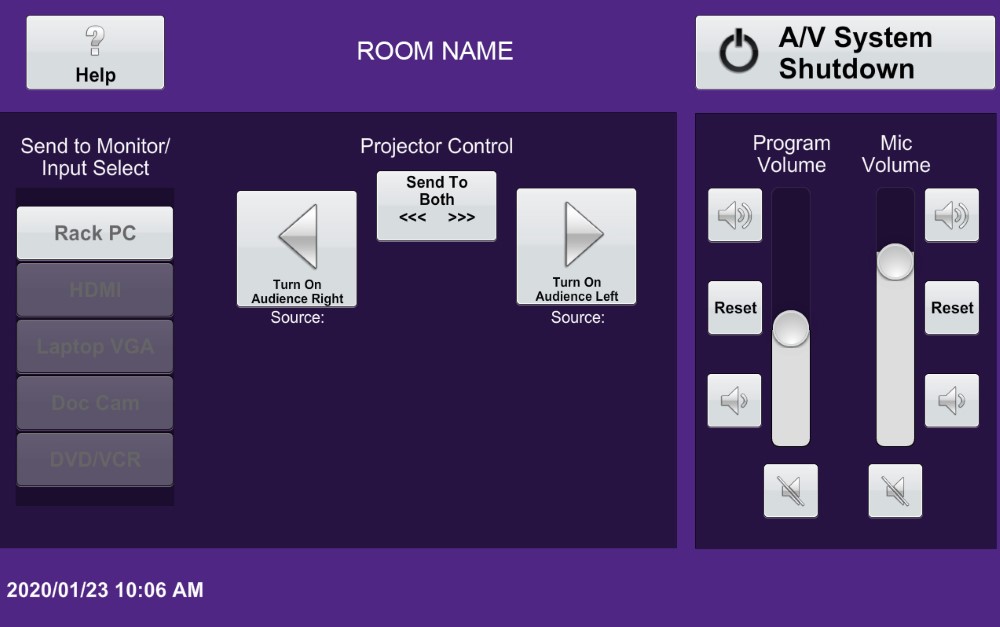
The Crestron a/v control interface in G.U. classrooms can be identified by a touch-screen that features a purple background. Pressing the "Help" icon on the touch-screen provides self-serve information to assist the presenter in their operation of the a/v system.
Input Selection
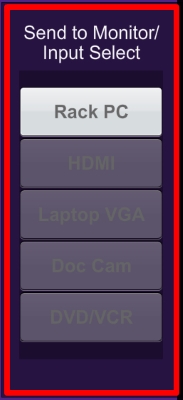
Send to Monitor/Input Selection
The presenter must physically turn on the desired equipment in the a/v rack, and/or connect their device to an a/v input port on the presenter contols dashboard.
On the touch-screen, press the icon for the video source that you wish to display.
The selected source video should appear on the confidence monitor.
Note: Source text on the touch-screen icon will appear in gray when no video signal is detected. Pressing a source icon alone will not turn on that particular device. You will first need to independently power up each source device you want to use before it can be displayed.
Projector Controls
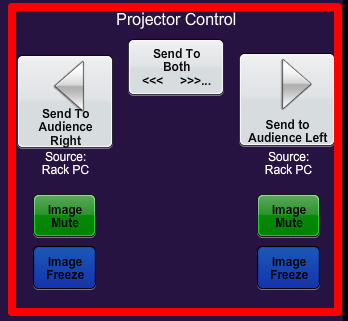
When the projector is on, its image can be "Muted" or "Frozen" using the corresponding icons on the touch-screen.
In rooms with more than one projector use the touch-screen icon to "Send" a video source image to one display, or both displays. Pressing the "Send To Both" icon enables this.
You can also send a different video source to each projector. Press the selected "Source" icon and then choose the desired "Projector" icon where you would like that particular video to be displayed.