

Search Website
Working with the Classroom Computer
Turn on the classroom computer (Rack PC) by pressing the red power button on the front of the Rack PC, as shown in the image below. The small, LED indicator lights next to the power button, will be illuminated when the computer is turned on.
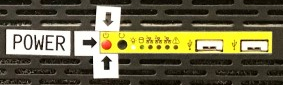
Note: Pressing the Projector On, Audio On or the Rack PC input select button on the A/V controller will not power up the computer in any G.U. classroom.
If at any time the computer becomes unresponsive, pressing and holding the red power button on the computer will force it off. Remove any USB devices that may be connected to the front USB ports and press the red power button again to start another session.
Please remember to shutdown or reboot the Rack PC when finished.
After Windows has booted the computer will prompt you to press Control-Alt-Delete on the keyboard. Depending on which classroom you are using, the keyboard should be on the A/V console or within one of the drawers in the A/V rack. Type in your Western Identity in the user name field and your corresponding password in the password field and press Enter. It will take about a minute or two to build your Windows profile.
A valid User ID and password are required to log onto General University classroom computers.
Files may be temporarily stored on classroom computers during the course of instructional activities. All locally stored data on these systems is subject to automated deletion upon system restart or shutdown.
Presenters are responsible for ensuring that any information they intend to retain is transferred to, and stored within, personal storage media or systems that are authorized for use and appropriately aligned with Western's Data Classification Standard.
There are two USB-A and one USB-C ports located on the front of the classroom computer.
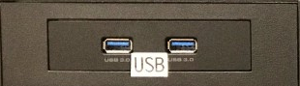
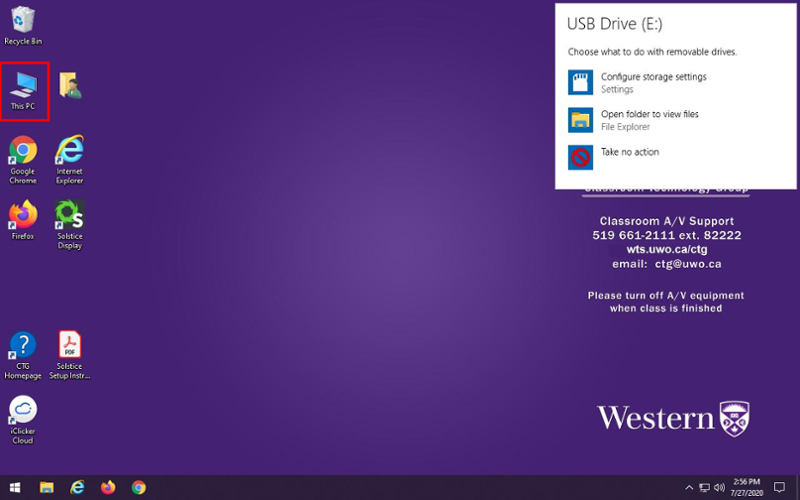
Please wait until the Windows desktop appears before you insert your USB flash drive. Once inserted an AutoRun dialog window should appear. You may view your files by clicking on the "Open folder to view files" option or by double clicking on "This PC" (within the red rectangle in the image below).
Please wait until the Windows desktop appears before you insert your DVD/Blu-ray disk into the Rack PC. Once the disc is inserted an AutoRun notification will appear in the lower right-hand corner of the screen. Clicking on this notification will provide the option to playback the movie using the Leawo Blu-ray player.
To Playback DVD/Blu-ray media without the notification, double click on “This PC” icon, located on the desktop. This will open the file explorer; the DVD/Blu-ray Drive should appear as a new icon listed under Devices and Drives.
Right click on the “DB-RE Drive (D:)" and select “Open Auto-play”. This Will provide the option to playback the movie using the Leawo Blu-ray player.
Instructors who require custom software to support their teaching in General University (G.U.) classrooms must follow the guidelines established by the Classroom Technology Group (CTG).
These guidelines outline important considerations regarding software compatibility, licensing, installation procedures, and maintenance responsibilities. To ensure proper evaluation and support, all requests must be submitted through the Rack PC Software Request form.
This form allows CTG to assess the application's suitability within the classroom computing environment and coordinate installation in accordance with institutional standards.